Printer Card
HP, Brother and any IPP printer (Epson, Canon…): status, ink or toner levels, alerts and scanning.
Works with HP Printer (ha-hp), the core HP Printer and Brother integrations and any IPP printer, and scans with ha-hp. The brand logo sits on the header icon, the drawing follows the brand and range, the control panel lights up in the status colour, and the card simply says offline when the printer is off.
Highlights
- HP Printer (ha-hp, found first), core HP Printer, Brother and IPP integrations
- Scan section with ha-hp: source, format, resolution and color mode, scan and add a page, download the file
- Brand logo badge for HP, Brother, Epson and Canon
- Drawings by brand and range, picked from the model
- Status with colour and a pulsing control panel while printing
- Ink or toner tanks in slot order, with a warning threshold
- Paper, cover and cartridge alerts
- Brother drum, belt unit, fuser and paper feed kits by remaining life, in a section you can hide
- A Brother drum at its end shown as a stopped printer
- Chips opening the more-info dialog of their entity
- Empty forecast for each cartridge and part, at the pace of the last 90 days
- Offline state that keeps the ink or toner levels still known, on the card and the mini card
Works with
Cards
type: custom:printer-cardInstall
- 1Open the repository in the Marketplace with the Add to Marketplace button above, or add
github.com/juju35/ha-printer-cardas a custom repository (category Dashboard). - 2Download it from the Marketplace.
- 3Reload the browser and add the card from the dashboard editor.
Gallery 22
Documentation
From the README Features
Features
- Offline state: when the printer is turned off or unreachable, the picture turns grey and the card shows Offline with the last time it was seen, and the ink or toner levels when they are still known
- Status with color: ready, sleeping, printing, scanning, copying, cancelling, stopped. The printer's control panel lights up in the status color and pulses while it works (steady when the system asks for reduced motion)
- Ink or toner levels: one tank per cartridge, in the printer's slot order, with a warning below a configurable threshold
- Empty forecast: under each cartridge and part, about how long it lasts at the pace of the last 90 days (≈ 7 weeks; Empty in 7 weeks (12 Mar) on hover, with the date it runs out), from the recorder's daily statistics, a refill starting the count over
- Brother parts (Brother integration): drum (or one per color), belt unit, fuser and paper feed kits by remaining life, in a Parts section, with an alert at the low threshold
- Any IPP printer: status, ink or toner levels and paper / cover alerts for printers of any brand through the IPP integration
- Pictures: a drawing per range for HP (OfficeJet, LaserJet, DeskJet / ENVY, Smart Tank), Brother (laser, inkjet), Epson (EcoTank, Expression / WorkForce) and Canon (PIXMA / MAXIFY, MegaTank, i-SENSYS), and a generic printer for the other brands, picked from the device model or chosen in the editor
- Brand logo (HP, Brother, Epson or Canon) as a badge on the header printer icon
- Alerts: low or nearly empty ink, missing / used / non-HP / damaged cartridge, printhead problem, and, through the IPP integration, empty paper tray, paper jam, open cover…
- ePrint status: on, off or not registered (HP cloud printing)
- Clickable chips: a chip opens the more-info dialog of its entity (cartridge level, IPP printer sensor, ePrint sensor…), also from the keyboard (Tab, then Enter or Space)
- Page counter
- Mini card, laid out like the Home Connect mini cards: icon, name and status on top, then the picture with one chip per cartridge (a small tank at its level, outlined orange when low, red when nearly empty) and per alert
- Detail button on the mini card (top right): shows the full card in place, with everything it shows; the button, or a click anywhere else, goes back to the compact view.
zoom: falseremoves it - Automatic entity discovery from the device (works with English or French entity IDs), status, IPP sensor, ePrint sensors and page counter can be overridden
- Visual editor in the dashboard UI (no YAML needed)
- English, French, German, Spanish, Serbian (Cyrillic and Latin), Italian, Dutch, European Portuguese, Polish, Romanian, Danish, Swedish, Bulgarian, Russian, Ukrainian, Hungarian, Slovak, Czech, Slovenian, Latvian and Greek, follows the Home Assistant language
- Light and dark theme compatible
- Single file, no dependencies, ready for the Marketplace
Scanning
Scanning
With HP Printer (ha-hp) and a printer that scans, the card has a Scan section:
- Source: glass, document feeder or double-sided feeder; Format: PDF, JPEG or PNG; Resolution: those the scanner offers; Color mode: color, grayscale or black and white (those the scanner offers). They are the integration's select entities, so its own Scan button uses the same settings
- Scan starts a new file; Add a page (PDF) scans the page on the glass and adds it to the last PDF, for a document scanned page by page
- While it scans, the buttons wait and show the progress; an error (feeder empty, scanner busy…) is shown in the card
- At the end, the file appears with a Download link (one per page in JPEG or PNG), signed when clicked; once downloaded, ha-hp deletes the file and it leaves the card. The download needs ha-hp 1.2 or later (Home Assistant's media view does not serve PDFs)
show_scan: false hides the section.
Supported integrations
Supported integrations
| Integration | Printers | What the card shows |
|---|---|---|
| HP Printer (ha-hp) (Marketplace, recommended for HP) | HP OfficeJet, LaserJet, DeskJet / ENVY, Smart Tank | Status (kept while the printer is off), ink or toner levels, pages remaining, cartridge alerts (taken out, problem), the printer's own message when it stops (out of paper, jam, open door), HP cloud status, page counter |
| HP Printer (Marketplace) | HP OfficeJet, LaserJet, DeskJet / ENVY, Smart Tank | Status, ink or toner levels per cartridge, cartridge and printhead alerts, ePrint status, page counter |
| Brother (built in) | Brother laser and inkjet printers (SNMP) | Status (printer status, else the raw status text), ink or toner levels, page counter |
| IPP (built in) | Any brand: Epson, Canon, Brother… | Status, ink or toner levels, paper and cover alerts (empty tray, jam, open cover…) |
With an HP Printer integration or Brother and IPP both set up for the same printer, the card uses HP Printer or Brother for the status and the inks and picks up the IPP printer sensor by itself for the paper and cover alerts. Epson and Canon printers have no dedicated Home Assistant integration: they go through IPP.
Prerequisites
Prerequisites
- Home Assistant 2024.8 or later with HP Printer (ha-hp) (recommended for HP printers), elad-bar's HP Printer, Brother or the IPP integration (any brand) set up
- With both integrations set up for the same printer, the card uses HP Printer for status and inks and picks up the IPP printer sensor by itself for paper and cover alerts
Configuration
Configuration
Visual editor#
Add the card from the dashboard (Add card → Printer Card or Printer Mini Card). The first printer found is picked automatically; change it with the Printer field, then set the name, the picture, the sections to show and the low ink threshold. The Entities (advanced) panel lets you force an entity if auto-detection picks the wrong one. Options left at their default are not written to the YAML.
Minimal#
type: custom:printer-card
device_id: e1146b5da5cdfee3f4b06c25b0c863a7
Use either device_id (what the visual editor writes) or entity (any entity of the printer's main device). With neither, the card uses the first printer it finds.
Mini card#
type: custom:printer-mini-card
device_id: e1146b5da5cdfee3f4b06c25b0c863a7
zoom: true
The mini card takes the same options as the full card (they also apply to its full view), plus zoom. show_inks and show_alerts choose its chips; show_image its picture. In a Sections view it takes 6 columns (half the width) by default.
Full options#
type: custom:printer-card
device_id: e1146b5da5cdfee3f4b06c25b0c863a7
name: Printer
show_image: true
show_inks: true
show_parts: true
show_alerts: true
show_stats: true
show_eprint: true
show_expired: false
low_threshold: 15
picture: auto
admin_url: http://printer.local
image: /local/my-printer.png
language: en
entities:
  status: sensor.hp_officejet_pro_9010_series_192_168_1_119_status
  ipp: sensor.hp_officejet_pro_9010_series
  total_pages: sensor.hp_officejet_pro_9010_series_192_168_1_119_printer_total_pages
  eprint: binary_sensor.hp_officejet_pro_9010_series_192_168_1_119_eprint_status
  eprint_registration: binary_sensor.hp_officejet_pro_9010_series_192_168_1_119_eprint_registered
Options reference#
| Option | Required | Default | Description |
|---|---|---|---|
device_id |
❌* | Auto | Printer device (*or entity; the first printer found is used if both are missing) |
entity |
❌ | — | Any entity of the printer's main device, used to find the device |
name |
❌ | Device name | Card title |
show_title |
❌ | true |
Show the title in the header (e.g. false under a section heading of your own) |
show_image |
❌ | true |
Show the printer picture |
show_inks |
❌ | true |
Show the ink or toner levels |
show_parts |
❌ | Value of show_inks |
Show the Brother parts (drum, belt unit, fuser, paper feed kits) by remaining life |
show_alerts |
❌ | true |
Show the alerts |
show_stats |
❌ | true |
Show the total page counter |
show_eprint |
❌ | true |
Show the ePrint status (HP Printer integration only) |
show_forecast |
❌ | true |
Show under each tank when it is forecast to be empty: the drop per day since the last refill (a rise of 20 points or more), over at least a week of the last 90 days of the recorder's daily statistics; nothing for a level that doesn't go down |
show_scan |
❌ | true |
Scan section (ha-hp printers that scan): source, format, resolution, color mode, Scan / Add a page, download link of the last scan |
show_expired |
❌ | false |
Also alert when a cartridge's warranty date has passed |
low_threshold |
❌ | 15 |
Ink level (%) at or below which a cartridge is flagged as low; at 5 % or less it is nearly empty. Also the remaining life (%) at which a Brother part (drum, belt, fuser, paper feed kit) raises an alert |
admin_url |
❌ | Detected | Page opened when clicking the printer picture, e.g. http://printer.local. By default, the device's configuration URL or the address of its IPP sensor |
picture |
❌ | auto |
Picture: auto, officejet, laserjet, deskjet, smart_tank or generic (see below) |
image |
❌ | — | URL of your own printer picture, e.g. /local/printer.png; replaces picture |
language |
❌ | Auto | Force language: fr, en, de, es, sr, sr-Latn, it, nl, pt, pl, ro, da, sv, bg, ru, uk, hu, sk, cs, sl, lv or el (auto-detects from HA settings; Automatic in the visual editor) |
entities |
❌ | Auto | Override detected entities (see below) |
zoom |
❌ | true |
Mini card only: detail button in the top right corner, showing the full card; a click on it or anywhere else goes back to the compact view. false removes it |
Entity overrides#
Keys accepted under entities:
| Key | Domain | Used for |
|---|---|---|
status |
sensor |
Printer status (HP Printer Status sensor, or the IPP printer sensor) |
ipp |
sensor |
IPP printer sensor, read for paper, jam and cover alerts |
total_pages |
sensor |
Page counter |
eprint |
binary_sensor |
ePrint status (on / off) |
eprint_registration |
binary_sensor |
ePrint registration, shows not registered when off |
Cartridges are always found from the printer's devices.
Pictures#
picture |
Used by auto for |
|---|---|
officejet |
Other HP models (OfficeJet, PageWide…): all-in-one drawing |
laserjet |
HP LaserJet, Neverstop |
deskjet |
HP DeskJet, ENVY, Tango |
smart_tank |
HP Smart Tank, Ink Tank |
brother_laser |
Brother laser printers (HL, DCP-L, MFC-L) and other Brother models |
brother_inkjet |
Brother inkjet all-in-ones (MFC-J, DCP-J) |
ecotank |
Epson EcoTank (ET, L series) |
epson_inkjet |
Other Epson models (Expression, WorkForce…) |
pixma |
Canon PIXMA, MAXIFY and other Canon inkjets |
megatank |
Canon MegaTank (PIXMA G series) |
canon_laser |
Canon i-SENSYS, imageCLASS, imageRUNNER (LBP, MF) |
generic |
Printers of other brands (IPP) |
The drawings by brand:

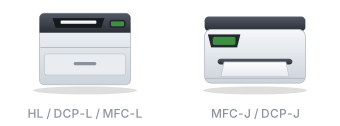
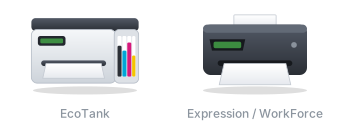
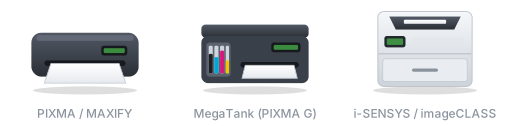
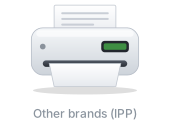
The control panel of each picture lights up in the status color.
Theme colors#
The status colors follow the Home Assistant theme: --success-color (ready), --info-color (printing, copying), --warning-color (cancelling) and --error-color (stopped). Two states have no Home Assistant color and get their own variable, which a theme can set:
| Variable | State | Default |
|---|---|---|
--printer-card-sleep-color |
Sleeping (power save) | #5c8fd6 |
--printer-card-scan-color |
Scanning | #8e24aa |
How it works
How it works
The HP Printer integration creates one device per part of the printer (each cartridge, the printhead, the print, scan and copy counters) linked to the main device. The card reads the entity registry to list them, then for each cartridge finds its level, slot, status and warranty date. The printer is shown as offline when its status sensor reports off (that's what the integration does when the printer stops answering) or is unavailable.
With the Brother integration, the card reads its Printer status sensor, and its Status text for the errors (paper jam, no paper, cover open, toner empty, "unable to print"…): the printer is then shown as stopped with that text as an alert. Its toner or ink levels are the cartridges, and the remaining life of the drum, belt unit, fuser and paper feed kits fills the Parts section.
With the IPP integration only (any brand), the card reads the printer sensor of the IPP device for the status and the printer-state-reasons alerts, and its marker sensors for the ink or toner levels. The ePrint chip is only shown for HP printers.
Set image to use a photo of your own model (the lit control panel is only drawn on the bundled drawings).
Support
Support
If you find this project useful, you can support its development:

Changelog
All 53 versions 2.14.0Nov 12, 2026Latest
Features
show_titleoption (also in the visual editor) hides the header's title, for a card placed under a section heading of its own (asked in juju35/ha-vehicle-card#72).
2.13.1Nov 12, 2026
Fixes
- Offline, the card keeps showing the ink or toner levels (and Brother parts) that are still known, as ha-hp keeps them while the printer is off; the full card and the mini card. Alerts and the scan section stay hidden.
2.13.0Nov 12, 2026
Features
- Scan section: color mode (color, grayscale, black and white, as the scanner offers them), set on ha-hp's color mode select like the source, format and resolution.
2.12.1Nov 12, 2026
Fixes
- Download of a PDF scan gave a 14-byte file (
404: Not Found): Home Assistant's media view only serves audio, video and images. The card downloads through ha-hp's own download paths (ha-hp 1.2 or later), signed when clicked; ha-hp then deletes the file, which leaves the card. With an older ha-hp, images still download through the media source.
2.12.0Nov 12, 2026
Features
- Scan section for HP Printer (ha-hp) printers that scan: source (glass, feeder, double-sided feeder), format (PDF, JPEG, PNG) and resolution, set on the integration's select entities; Scan and Add a page (adds the page on the glass to the last PDF); progress and errors in the card; at the end, the file with a Download link (one per page in JPEG or PNG), signed when clicked (ha-hp 1.1 or later).
show_scan: falsehides it.
2.11.0Nov 12, 2026
Features
- HP Printer (ha-hp) supported (domain
hp), and found first: status (offshows the printer as offline with its last values), ink or toner levels with pages remaining, a cartridge taken out or in trouble as an alert (from the level sensor's attributes), the printer's own message when it stops (out of paper, jam, open door), HP cloud chip and page counter. Its printers are offered in the editor's device picker.